

Inventory List
Find ingredients, read the supplier, allergen and calorie icons, add ingredients by hand or in bulk, and set par levels.
Open Inventory Manager > Inventory List.
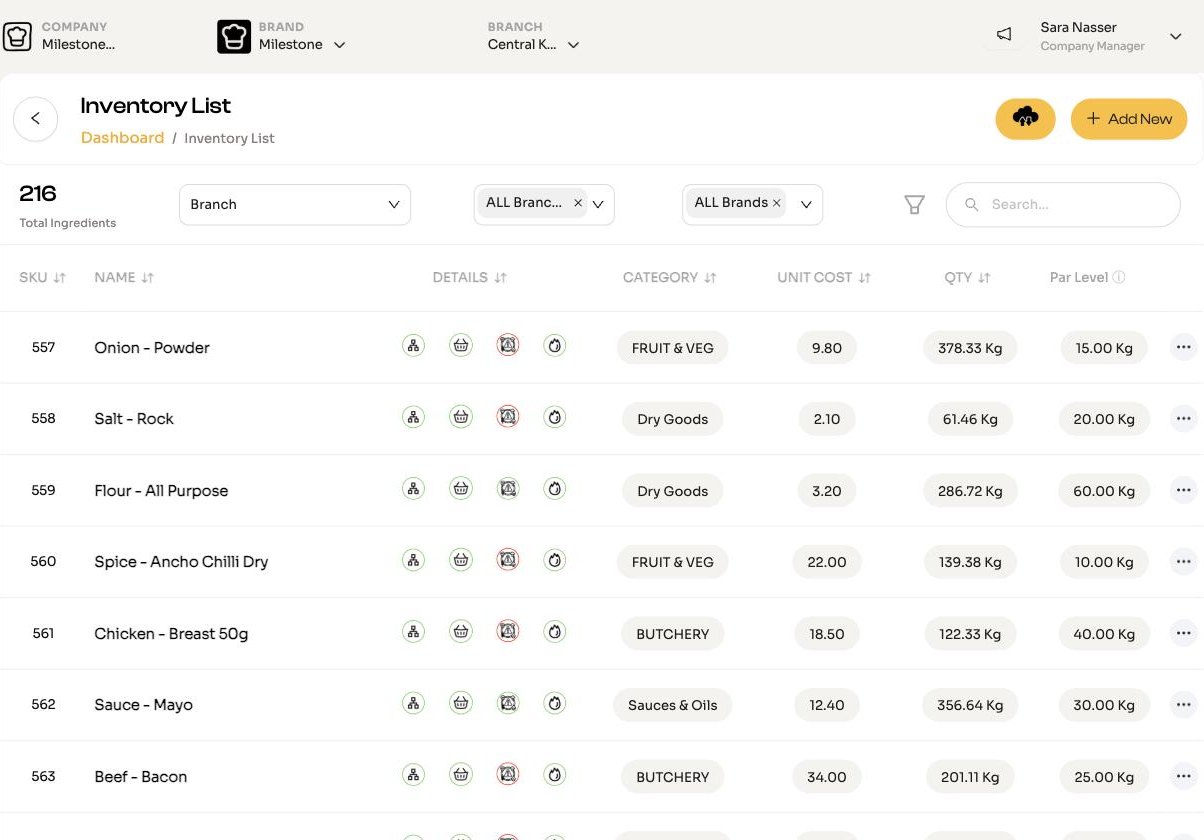
Finding ingredients
- Scope: Company Managers choose Brand, Branch or Company, then pick brands and branches. Branch and Brand Managers pick from their own.
- Search by name, and use the filter for type, category and sort order.
| Column | Shows |
|---|---|
| SKU | The item code. |
| Name | Click to view the ingredient. A warning icon means it has no supplier yet. |
| Details | The status icons, below. |
| Category | |
| Unit cost | The current cost per storage unit. |
| Qty | Stock on hand. |
| Par Level | The level the branch should keep. See Par levels. |
The status icons
Each ingredient has icons showing whether it is complete. An ingredient is complete when it has all three:
| Icon | Green when | How to fix a red one |
|---|---|---|
| Supplier | A supplier is linked. | Click the red icon and fill in Tag Supplier: choose the supplier and the cost of one storage unit. Or use Procurement for many at once. |
| Allergens | Allergens are recorded. | Edit the ingredient and choose its Allergens, or click in the ingredient window. |
| Calories | Calories, carbs, protein and fat per 100 g are all filled in. | Edit the ingredient and fill in all four. |
Two more icons show the ingredient type (sub recipe, production or sustainable) and how many recipes use it. A red usage icon means no recipe uses it.
Allergens and calories
Values filled in by Let me help are AI estimates from typical products. Check them against your supplier's data, and show an allergen disclaimer to customers.
Add an ingredient by hand
Click Add New. In Create Ingredients, enter:
- Ingredient Name and Ingredient Category (type a new category to create it).
- UOM: the storage unit. It cannot be changed once the ingredient is used.
- Allergens and Storage Waste % (optional).
- Calories, Carbs, Protein and Fat per 100 g.
Click Continue. The ingredient is added to your company inventory, ready to be given a supplier.
Most ingredients arrive through matching in Engineering instead, which adds them for you when you confirm a new ingredient.
Upload ingredients in bulk
From the upload menu, choose Upload Ingredients and upload a CSV with these columns:
- Required: Item Name, UOM, Item Category.
- Optional: Portion (Serving), Portion Unit, Calories (kcal), Carbs (g), Proteins (g), Fats (g), Product Code, and Yes or No allergen columns (Alg-Milk, Alg-Egg, Alg-Fish, Alg-Shellfish, Alg-Treenuts, Alg-Peanuts, Alg-Soybean, Alg-Gluten).
Exports
The same menu offers Export Full Marketlist CSV, Export Stock on Hand CSV, Export Used Items, Export Used Items Without Cost and Unused Items Report.
Par levels
The is how much a branch should keep in stock.
- Filter the list to a single branch.
- Type the par level in the Par Level column. It saves when you click away.
Items below par are highlighted in red with below par. Clear the box to remove a par level. Par levels also suggest quantities when chefs raise a requisition in the app.
Edit or delete
Use View, Edit or Delete in the row menu. An ingredient used in a recipe cannot be deleted; ChefAdmin names the recipes it is used in.