

Stocktaking
Start a stock count, enter what is on the shelf, and post the difference to inventory.
A makes the system match what is physically on the shelf.
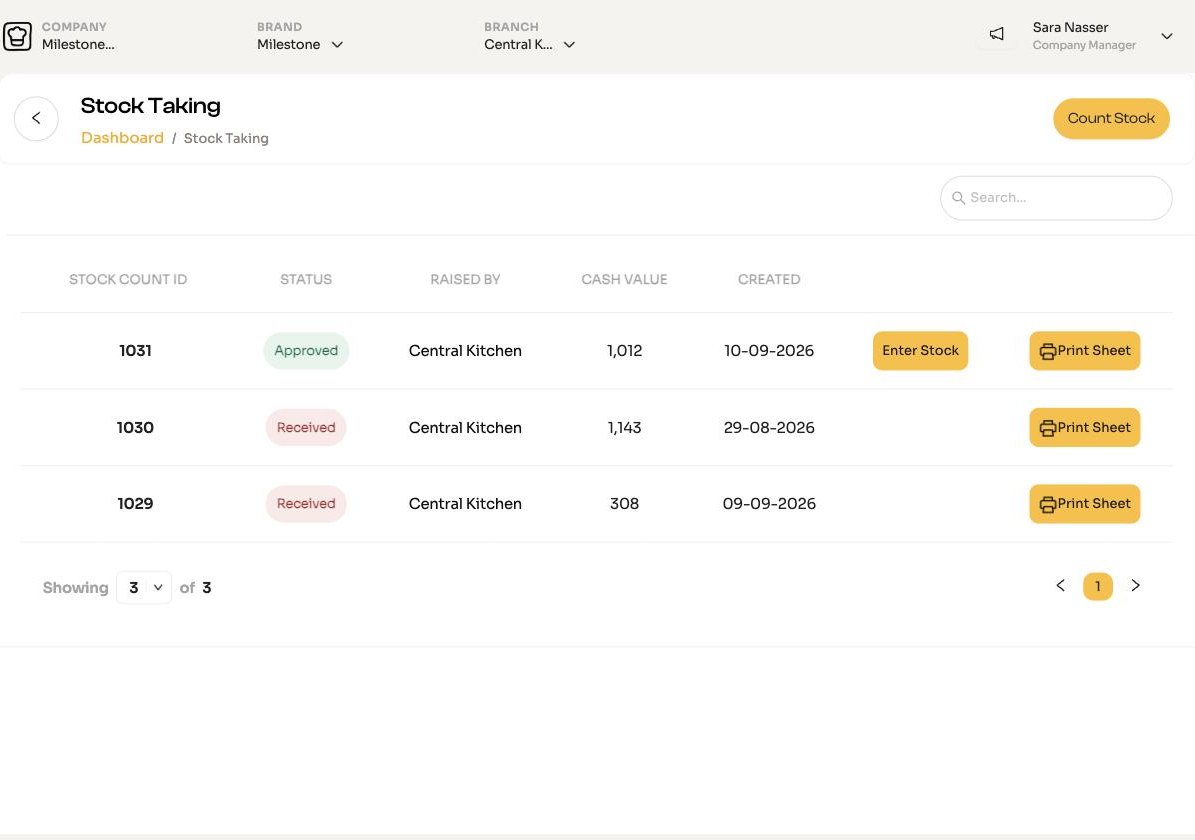
Start a count
Open Inventory Manager > Stocktaking and click Count Stock. Choose the brand or branch and, optionally, categories, then click Activate Stock Take. This freezes the list of items to count.
Print a count sheet (optional)
On the stocktake's row, Print Sheet downloads a sheet to count on paper.
Enter the counts
Click Enter Stock on the row. For each item you will see the Current Balance; enter the Updated Quantity. ChefAdmin shows the deficit and its cash value. Click Save to finish later.
Submit
Click Submit Count. The difference for each item is posted to inventory at cost and recorded as stock adjustment, so it shows in your reports separately from ordinary waste.
Chefs can also count stock from the chef app. See Kitchen actions.