

Suppliers and prices
Add suppliers, link them to ingredients with a cost, and choose each ingredient's default supplier.
Suppliers live in Settings > Supplier List.
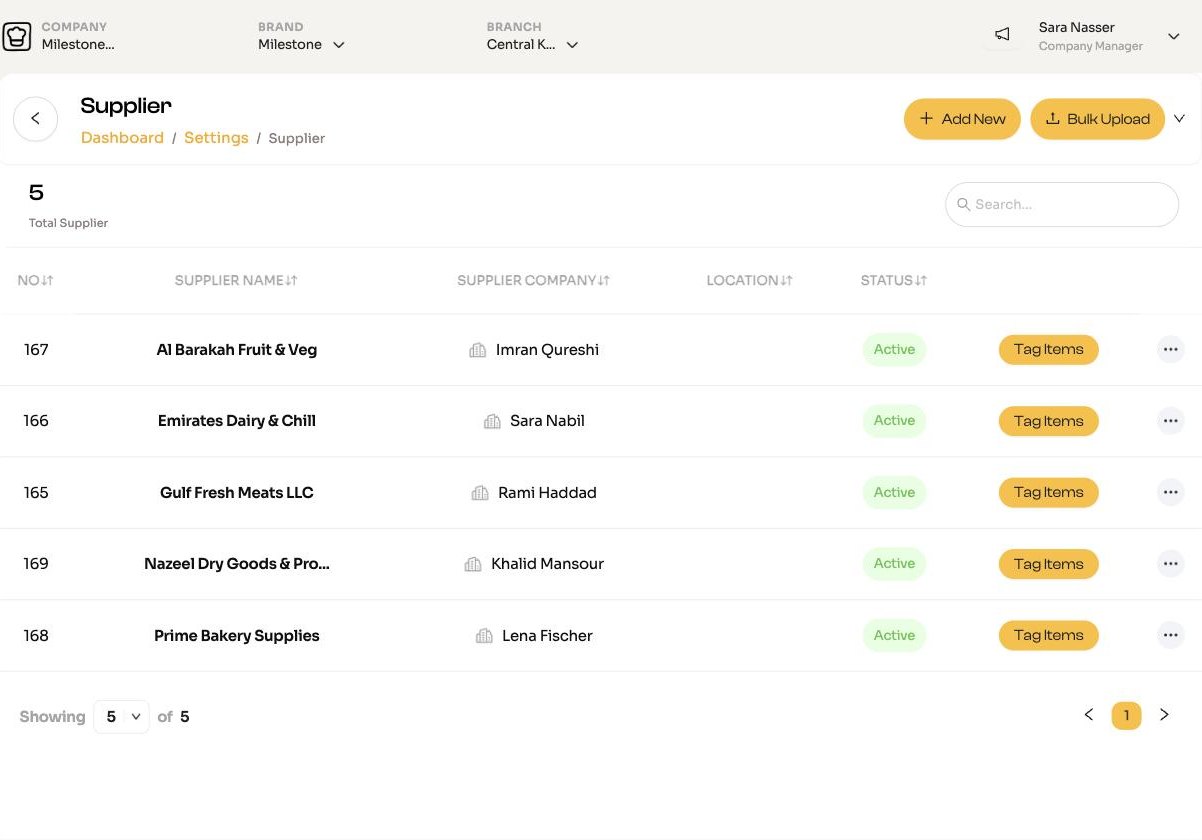
Add a supplier
Click Add New and fill in Supplier Name, Contact Name, Contact Number, Contact Email, Address, Country and Branch in City (the branches it delivers to). For each city you can tick delivery days and times.
To add many at once, use Bulk Upload > Upload Suppliers.
Link ingredients to a supplier
On the supplier's row choose Ingredients. The Tag Ingredients to Supplier page has two tabs:
- Untagged: tick the ingredients this supplier sells, enter the Total Cost for each (it must be above zero) and click Tag Selected.
- Tagged: the ingredients already linked. Tick Default to make this supplier the ingredient's default.
You can also give a single ingredient a supplier from the red supplier icon on the Inventory List, or many at once in Procurement.
Default supplier
When an ingredient has more than one supplier, the default is the one ChefAdmin uses when it turns requisitions into purchase orders. Give each ingredient one default.
How prices update
You set a starting cost when you link a supplier. After that, prices come from what you order and receive: when you change a price on a purchase order or at receiving, tick Set default cost (or New default cost) to make it the price used from then on. See Purchase Orders.
Delete a supplier
A supplier with ingredients linked is deactivated rather than deleted, so your history stays intact. Purchase orders cannot be raised against a Non-active supplier.