

Menu Manager
Menu Items
Read the Menu Items list, filter it, and open a dish's price, ingredients and description.
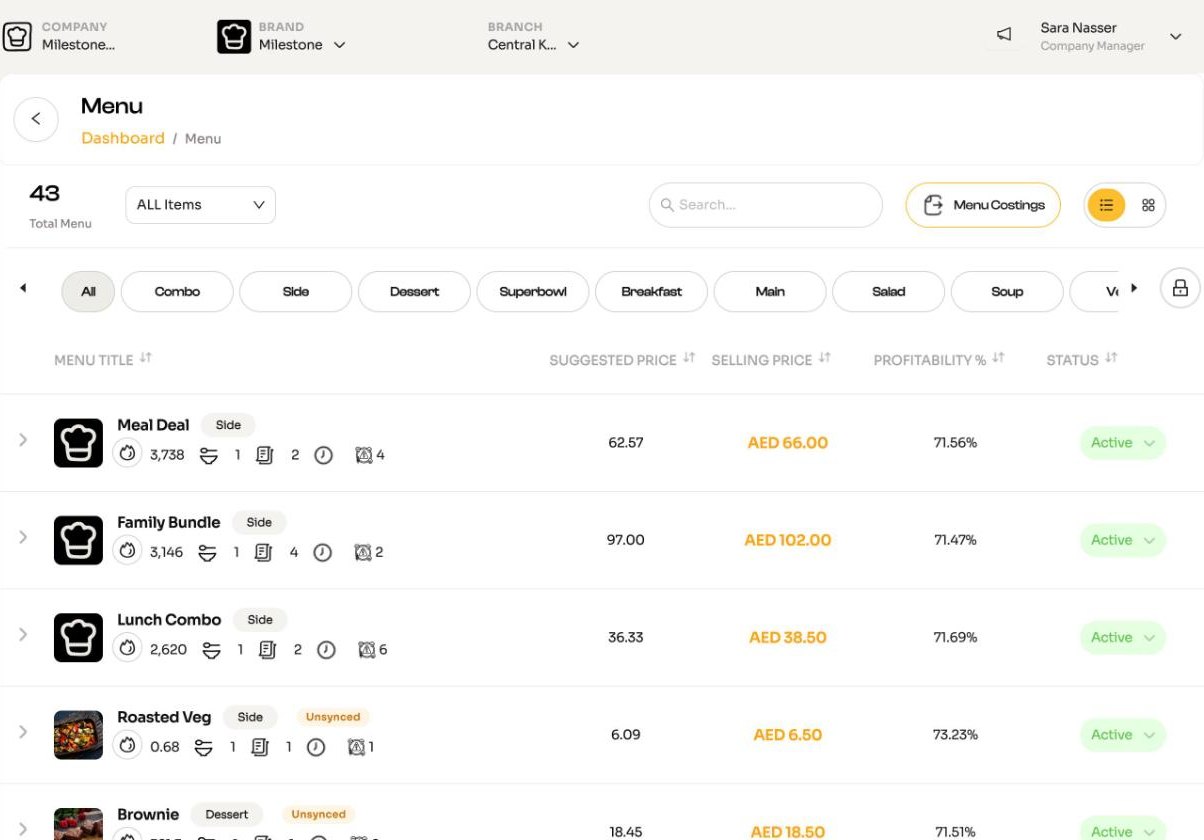
Open Menu Manager > Menu Items. The page is headed Menu and shows the brand selected at the top of the screen.
Finding items
- Status: ALL Items, Active or Non Active.
- Search by name.
- Category pills: All, then each menu category. Combos have their own category. In list view you can drag the pills to change the order your categories appear in.
- Switch between list and grid view.
The columns
| Column | Shows |
|---|---|
| Menu title | Photo, name and category. Under the name: calories, servings, number of sub recipes, date created and allergens. Items with sizes have a size picker. |
| Suggested price | The price that would hit your brand's target , including VAT. |
| Selling price | Your price including VAT. Hover to see the price excluding VAT. |
| Profitability % | What you keep after ingredient cost, on the price excluding VAT. |
| Status | Active or Non-active. Change it here. |
Open an item
- Click the name to open the price editor. See Pricing and profitability.
- Click the photo to see the ingredients.
- Expand the row to read the description.
Menu Costings
Menu Costings at the top of the page downloads the brand's costing book as a PDF.
Get purchasing live
If you have just upgraded to Kitchen and have not received your first order yet, a Get purchasing live card appears at the top of this page. It walks you through assigning suppliers, raising an order and receiving it. See Set up your kitchen.
Syncing with your POS
If the brand is connected to Zoho, a Sync button appears for owners and Company Managers. See Integrations.